

Interface tour: account and team
Account settings and team settings are deliberately separate. Your profile, sign-in security, and personal notifications belong to you. Members, roles, organization policy, and organization billing belong to the team.
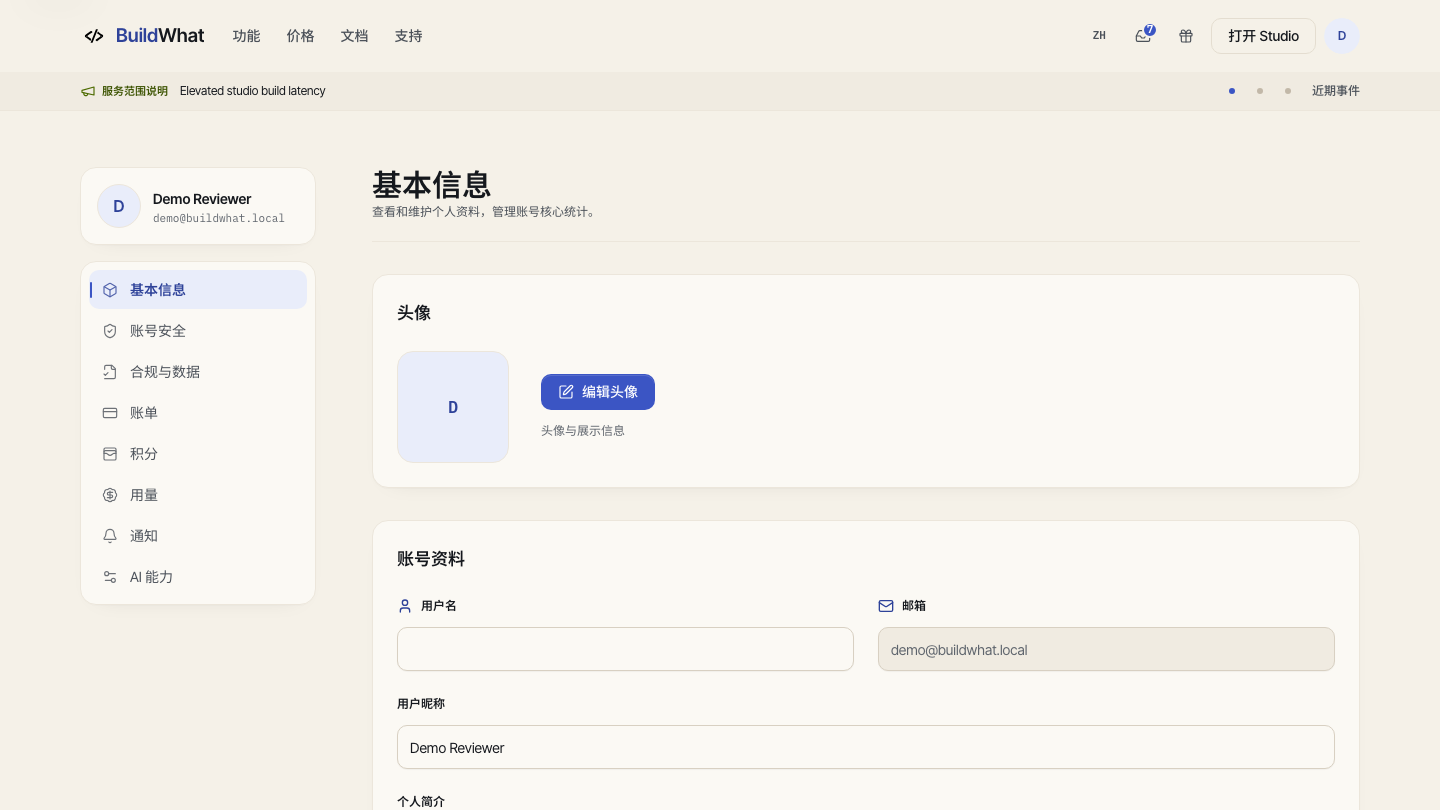
The user center map
| Section | Use it for |
|---|---|
| Overview | Display name, avatar, bio, and account summary |
| Account security | Password, verification, multi-factor authentication, sessions, and recovery |
| Compliance and data | Consent history, legal versions, and account data requests |
| Billing and credits | Subscription, payment methods, credit balance, usage, and invoices, when enabled |
| Notifications | Inbox and notification preferences |
| AI capabilities | Available models, MCP connections, and skills |
| Team management | The entry to organizations, members, and invitations |
Some sections are hidden in private deployments or when billing is not enabled. A hidden section is not necessarily a permission error.
Update your profile
- Open the avatar menu and choose the user center.
- Select Overview and review the avatar, username, email, nickname, and bio.
- Change only the fields the page marks editable. An email or name managed by an identity provider can be read-only.
- Save and wait for the success state. Then refresh once to confirm the change; the header avatar and name should update.
Keep sign-in secure
Use Account security to review the verification methods attached to the account. Enable multi-factor authentication when available, keep recovery details current, and revoke sessions you do not recognize. A profile change is not a password change, and changing your display name does not change organization membership.
Team management
Open Team management for the organization workspace. The overview shows the organization and your role; Members shows current people and invitations; Billing and seats shows the plan and seat usage when enabled; Policies and security contains organization-level controls. Owners and admins can invite, change roles, or remove members; a member may only see their own membership. Review the target email and role before sending an invitation.
When access looks wrong
If a page is missing, confirm the current account, organization, and role first. If you were invited but do not see the team, open the invitation with the same email and accept it before asking an owner to invite you again. If billing is unavailable, the deployment may not include billing; contact the organization owner rather than creating a second account.