Interface tour: Docs reader
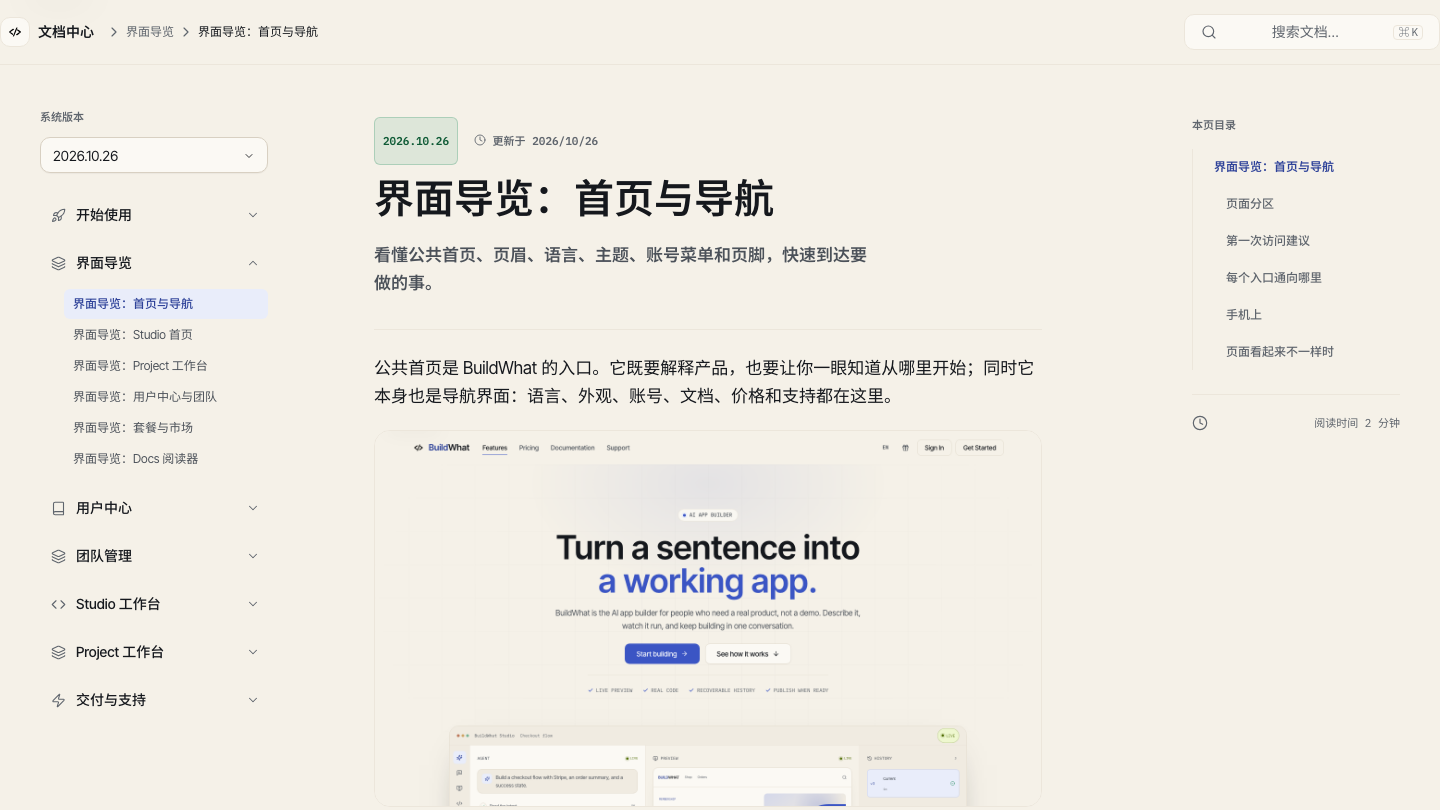
This manual is a task surface, not a static PDF. It has a versioned navigation, a searchable index, a table of contents, copyable commands, and previous/next links so you can move from a question to a checked action.
Find an answer
- Open Documentation from the header or footer.
- Use the search control, or press Control+K on Windows/Linux or Command+K on macOS, and type the task name. Search matches page titles and slugs; if it misses, browse the section.
- Expand the section that matches your area: getting started, interface, account, teams, Studio, projects, delivery, or support.
- Read the page summary and the table of contents before scrolling. The table of contents is the fastest way to a specific control.
- Use the previous/next links at the end of the article to continue in the intended order.
What the controls do
| Control | Effect |
|---|---|
| Version selector | Switches to a published manual version; older versions remain readable |
| Section navigation | Expands the manual sections and moves between pages |
| Search | Finds page titles; it is not a full-text search of every paragraph |
| Table of contents | Jumps to a heading on the current page |
| Copy button | Copies the code or command in a code block |
| Previous / next | Moves through the flattened navigation order |
| Feedback | Records whether the page helped and improves the manual |
Read the page safely
A screenshot illustrates a state, not a guarantee that your account has the same feature. A route, role, plan, organization policy, or deployment can hide a control. Always confirm the current account and project first. Commands and settings are examples; adapt identifiers and values to your own environment.
On a phone
The section navigation opens as a drawer; close it after choosing a page. Tables can scroll horizontally, but prefer the article order and the copy control over trying to read a whole table at once. The theme control remains in the footer of the public site; the Docs reader itself follows the platform theme.
If the page is missing
A 404 from Docs means the slug is not in the published navigation, not that the entire manual is unavailable. Return to the manual home, search for the task, or switch versions. If every Docs page fails, check the site status and sign-in state, then report the exact URL and error.