Interface tour: home and navigation
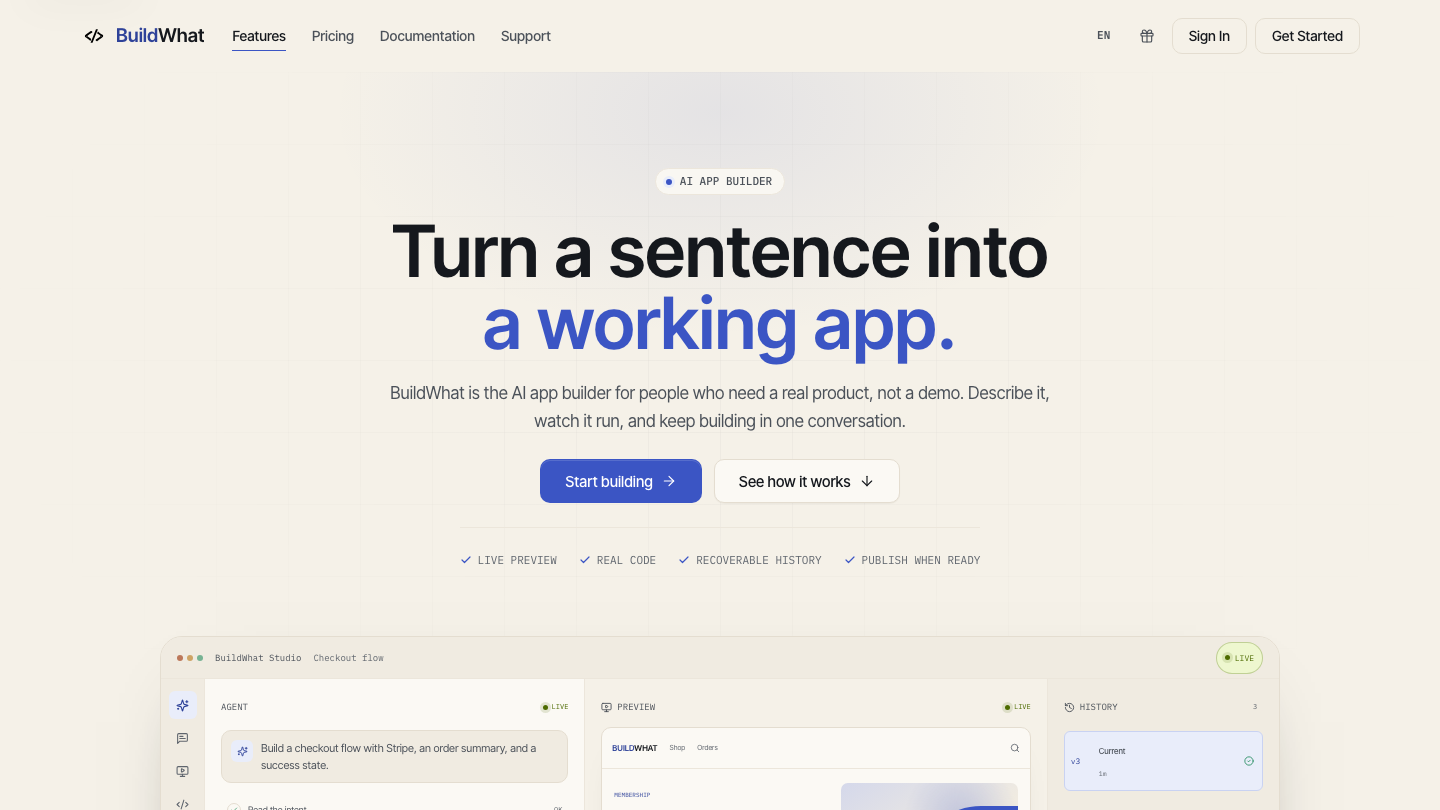
The public home is the front door to BuildWhat. It explains the product and gives you one obvious place to start, but it is also a working navigation surface: language, appearance, account, documentation, pricing, and support all live here.
Page regions
| Region | What it is for | What to do |
|---|---|---|
| Header | Brand, product navigation, language, theme, account, and the main Studio action | Use it to move between the public site and your workspace |
| Announcement strip | Current service news or scope notes | Read it when something behaves differently than expected |
| Hero | The product promise, two calls to action, proof points, and a live-looking demo | Start a project, or scroll to understand the workflow |
| Product tour | How a request becomes a running app, a preview, a checkpoint, and code | Follow the numbered sections in order |
| Use cases | Example project types and the first useful version | Pick the closest example when you need a starting point |
| Closing and footer | Final Studio action, pricing, documentation, legal, support, and theme control | Use the footer for supporting tasks after you finish the main path |
The demo window is a product illustration, not your project. Its Agent, Preview, and History panes show the intended relationship between a request, a running result, and a saved version. It contains sample content and should not be read as live account data.
A useful first visit
- Set the language with the header language control. The choice also selects the matching Docs manual.
- Check the appearance. The page follows the system light or dark preference by default; the footer theme control changes it explicitly.
- Read the three product-tour steps and the proof points. They tell you what the product will and will not do for you.
- Choose the next step: start a project, read the manual, compare plans, or sign in if you already have an account.
- If you are joining a team, open the invitation while signed in with the account that should receive membership. Do not create a second account to work around an invitation mismatch.
Where each action leads
- Start building or Open Studio leads to Studio after authentication.
- Pricing explains plans and credit packs; the recommended plan is the only filled plan action.
- Documentation opens this user guide, with search, version selection, and a table of contents.
- Support and the status entry help when a page is unavailable or a service is degraded.
- The account menu appears after sign-in and links to the user center, inbox, and sign-out.
On a phone
The header collapses into a menu button. Open it to reach product navigation and account actions. The hero, sections, and footer stack in reading order. The footer theme switch remains available at the end of the page. If a table is wider than the screen, use the Docs page rather than trying to read the marketing table as a data grid.
If the page looks different
A signed-in header replaces Sign in with your avatar and may show an inbox badge. An announcement can change the strip below the header. A private deployment can hide pricing. These are expected states, not missing navigation. If a link goes to the wrong account or organization, sign out, sign back in with the intended identity, and retry the action.