Interface tour: project workbench
The project workbench is where a project is inspected and changed. It is a fixed-height tool surface rather than a scrolling marketing page: the conversation, the current result, and the tools stay in predictable places.
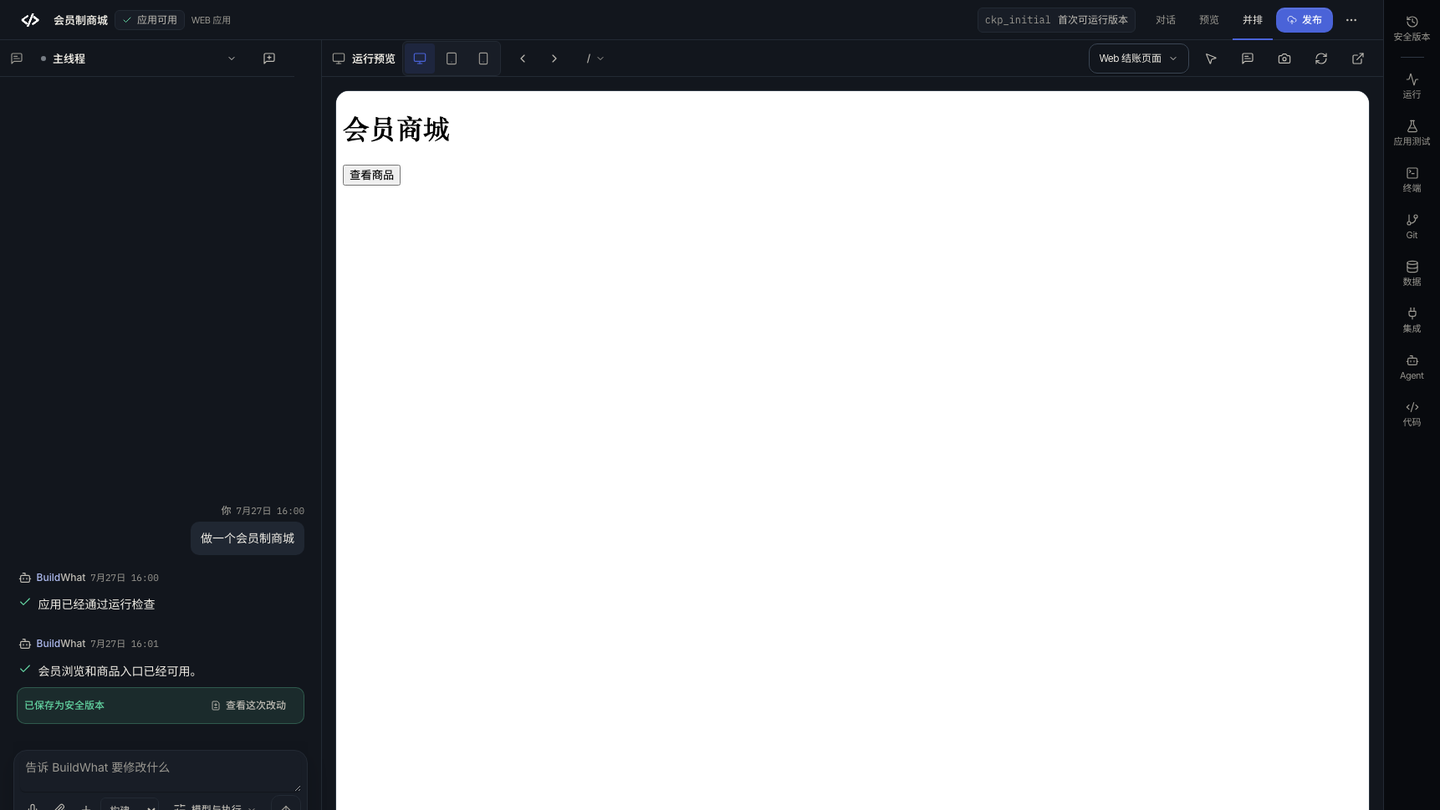
Locate the five surfaces
| Surface | Where it is | What it does |
|---|---|---|
| Command bar | Top edge | Names the project, current checkpoint, stage view, publish action, and overflow menu |
| Conversation | Left | Keeps the request, plan, Agent messages, approvals, and links in project context |
| Stage | Center | Shows the current preview, conversation, or a side-by-side view depending on the selected stage |
| Tool spine | Right edge | Opens history, runtime, app testing, terminal, Git, data, integrations, Agent, and code when available |
| Composer | Bottom of the conversation | Sends the next change without leaving the project |
A review loop that works
- Read the latest Agent message and the checkpoint chip. Confirm which version you are looking at before judging the result.
- Switch the stage to Preview and use the viewport controls. Test the primary path, an empty state, and an error or validation path that matters.
- Open the relevant tool: Changes or History for what moved, Code for source, Terminal or Runtime for logs, and Data for records. Not every tool appears for every route or role.
- Ask for one reviewable change at a time. Describe the screen, action, expected result, and actual result. The Composer sends it into the same project thread.
- When the result is good, save or confirm the checkpoint, then publish only after checking the preview and target environment.
Preview, publish, and recovery are different
Preview is for review and may be temporary. A checkpoint is a saved version you can inspect or return to. Publish creates a deployment for a supported route and environment. None of these proves that external providers, DNS, store credentials, or production data are ready. Use the preview first, then the checkpoint, then the route-specific publish flow.
Why a tool is missing
Tools are state- and permission-aware. A new project may have no terminal or Git until source and runtime exist. A prototype may have a design canvas but no Web deployment. A role can be read-only for source, billing, or publishing. If a tool is missing, check the route, project state, and your role before assuming the page is broken.
If the workbench will not open
If the page stays on the opening state, return to Studio and reopen the project. If a project is archived, deleted, or outside your organization, the workbench cannot load it. Keep the project code and the exact error when asking for help; do not create a duplicate project to work around an access problem.