Interface tour: Studio home
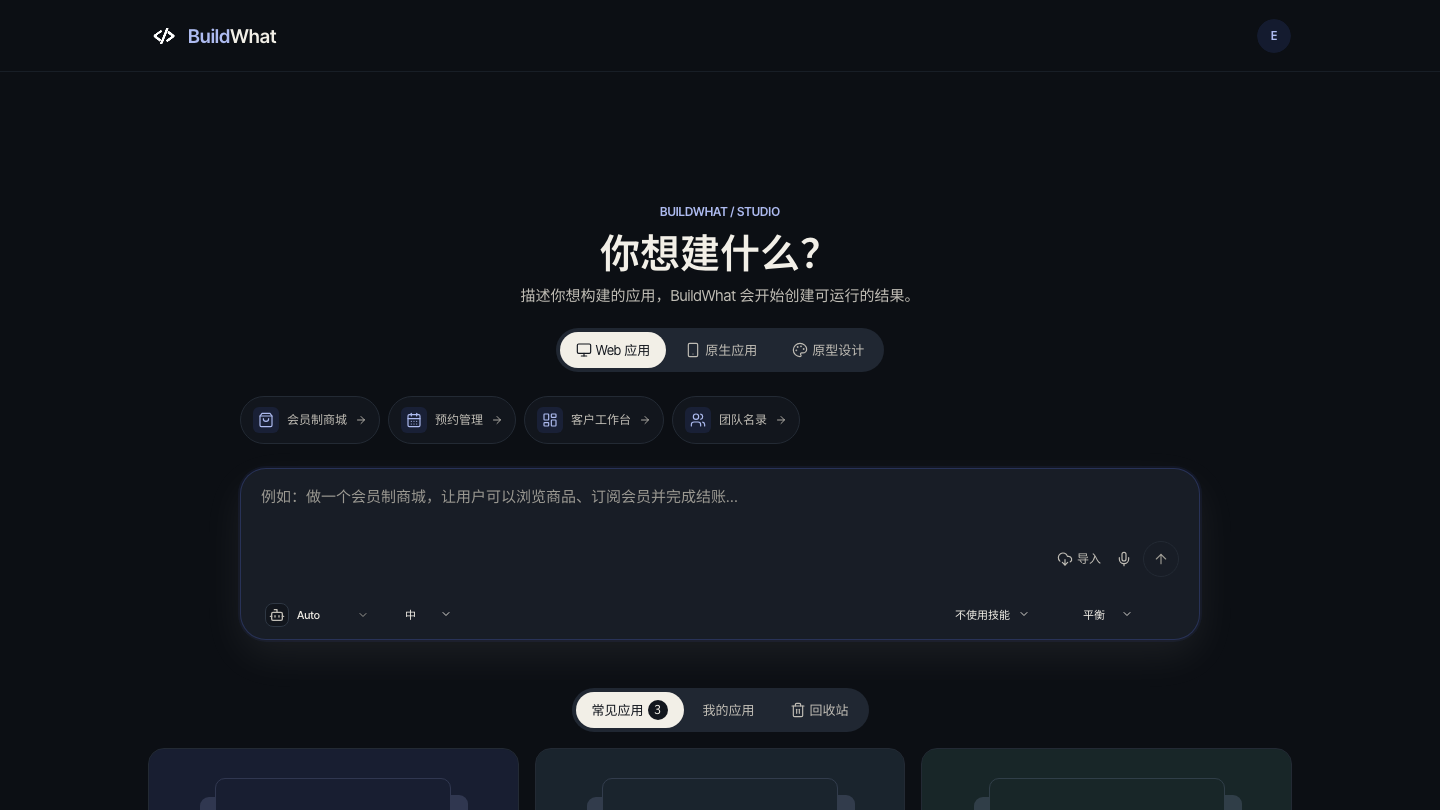
Studio is the working entry to BuildWhat. It is intentionally quieter than the public site: the main question is what you want to build, and the rest of the page supports that decision.
Page anatomy
| Area | What it contains | Why it matters |
|---|---|---|
| Route selector | Web application, Native application, Prototype design | The route changes the workbench, delivery, and available tools |
| Composer | The description of the outcome, attachments, and submit action | This is the main request the Agent receives |
| Suggestions | Example prompts for common deliverables | A safe way to start when you do not have a brief yet |
| Model and execution | Available model, effort, tools/skills, and execution mode | Availability can depend on plan, organization, and deployment |
| Project tabs | Common starters, My applications, and Trash | Switch between inspiration and existing work |
| Project cards | Name, description, status, and open action | Re-enter a project without recreating it |
Create the first project
- Pick the route that matches the deliverable, not just the screen you want. Use the route guide if you are unsure.
- Name the project, or let the first sentence become the working name.
- Describe the audience, the primary workflow, the important screens, and what success looks like. Include constraints and existing behavior that must not change.
- Review the model and execution settings only if the default does not fit the task. A larger model is not automatically the right choice for a small change.
- Submit and read the Agent response. If it asks a question or proposes a plan, answer or approve before expecting a running preview. Creation is a conversation, not a one-shot upload.
Route boundaries
Web projects are hosted on the Web route and can use browser preview, app testing, runtime, data, integrations, and Web publication when enabled. Native projects use device-oriented preview and native build/distribution flows; they do not use Web hosting publication. Prototype design projects use an editable design canvas and do not pretend to be deployed applications. Existing general-purpose projects use the Web route.
While the project is being created
A new project can show a plan, a progress state, or a request for approval before the workbench is ready. This is normal. Do not resubmit the same request in a second tab; wait for the current state, read the question, and answer it. If creation fails, keep the project name and the error visible, then retry from the same surface so the conversation stays attached to the project.
Existing projects
Open My applications to see projects you can access. A card can show a status such as ready, building, failed, or archived. Open the project to inspect its conversation and current state. Trash is for recoverable removal, not a permanent delete shortcut; review the project name before restoring or emptying it.
When the page is not usable
If the composer is missing, wait for authentication to finish. If routes are disabled, the deployment or your role may not include that route. If a model is unavailable, choose another available model or ask an organization owner to review policy. If the project list is empty but you expect projects, confirm the current account and organization before assuming data was lost.